ROS-MATLAB Communication
In this section, you will learn how to connect two powerful environments: MATLAB and ROS. By the end of this tutorial, you will be able to send commands from Matlab installed on your HOST PC to your robot in your virtual machine through ROS, as well as receiving them.
Prepare Matlab
You don’t need to install Matlab in your VM. You will be using the Matlab on the native operating system of your computer, which you have been using throughout the semester. You must have a MATLAB version between R2025a and R2026a!
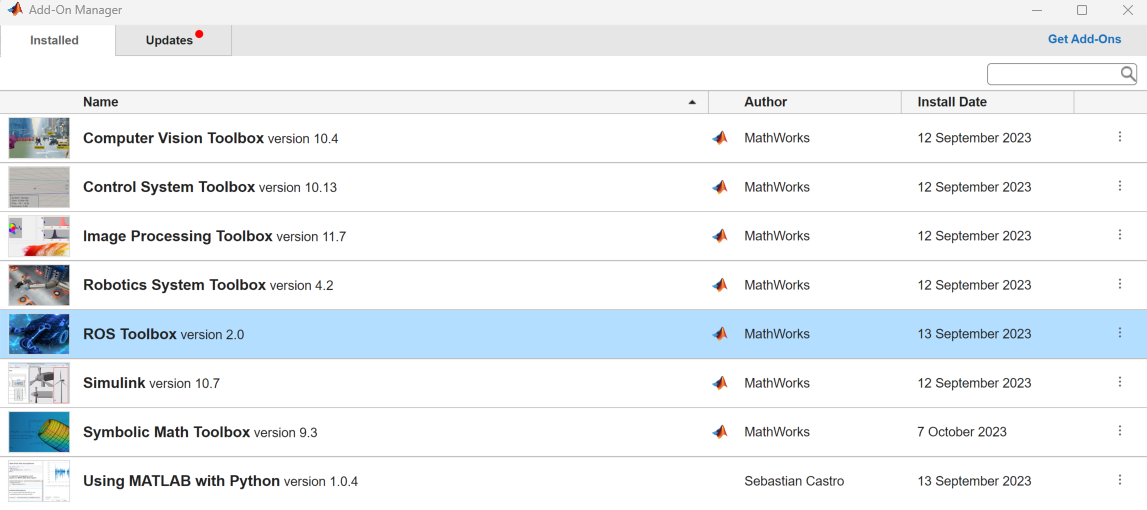
The ROS-Matlab communication is way easier than many of you might think. What you need is just MATLAB ROS Toolbox. Please make sure that you have the toolbox installed: Home > Add-Ons > Manage Add-Ons:
Changing the ROS Domain ID
By default the ROS_DOMAIN_ID will be 24 if you use the provided VM. If you have to change it or you have did your own Ubuntu installation use the following steps:
- Start your virtual machine and open a new terminal: ``Ctrl + Alt + T`
- Open the .bashrc using your favorite text editor:
gedit .bashrc - Check if the ROS_DOMAIN_ID is already defined in the file by looking for
export ROS_DOMAIN_ID. In the provided VM the line will look like this:export ROS_DOMAIN_ID=24. - If it already exists just change the number to the desired one. If it doesn’t add the line in the file.
ROS Communication Patterns in MATLAB
There are different ways of communicating in ROS. For an overview of the different communication patterns and when to use which you can check the site called ROS Communication Patterns. Here we will look at how we implement and use them in MATLAB. In order to communicate we need to setup the MATLAB script to be able to talk through ROS. The official guide to connect to a ROS2 Network in MATLAB can be found here. Initially we have to define the ROS Domain ID on which we will communicate on with the VM.
setenv("ROS_DOMAIN_ID","24")
As explained earlier, we assume that the id is 24 if you are using the provided VM. If you are using another domain ID simply change the 24 to your ID. After the environment has been set we can initialize a node that will be used to communicate through ROS:
% General Syntax
NODE_OBJECT_NAME = ros2node("NODE_NAME");

%Example
matlab_ros_node = ros2node("matlab_node");
After you executed a MATLAB script that contains the previous lines of code you should be able to run similar ROS commands in the Command Window of MATLAB as you are used to from the VM terminal. For example to see all active topics use the command:
ros2 topic list
And to the list of active topics and the message type associated with them you can use:
ros2 topic list -t
Similarly, to inspect active Services and Actions you can use:
ros2 service list -t
ros2 action list -t
Topics
Publisher
A publisher is sending data to a topic that will be forwarded to any subscribers to that same topic. The official documentation of how to define a publisher and publish data to a topic in MATLAB can be found here. To start we have to create the publisher by referencing the node object that we have created earlier and defining the topic name and the message type:
% General Syntax
PUBLISHER_OBJECT_NAME = ros2publisher(NODE_OBJECT_NAME,"TOPIC_NAME","MESSAGE_TYPE");

% Example
chatterPub = ros2publisher(matlab_ros_node,"/chatter","std_msgs/String");
We then create an object of that message type:
% General Syntax
MESSAGE_OBJECT_NAME = ros2message(PUBLISHER_OBJECT_NAME);

% Example
chatterMsg = ros2message(chatterPub);
To add data to the message object we have to know what the properties of that message type. We can find that by using the following commands in the Command Window:
% General Syntax
ros2 msg show MESSAGE_TYPE

% General Syntax
ros2 msg show std_msgs/String
The message definition for std_msgs/String is:
string data
Therefore to populate the message object in our example we use:
chatterMsg.data = 'hello world';
We can then publish that message object on the topic by using:
% General Syntax
send(PUBLISHER_OBJECT_NAME,MESSAGE_OBJECT_NAME)

% Example
send(chatterPub,chatterMsg)
The full publisher example script would look like this:
setenv("ROS_DOMAIN_ID","24")
matlab_ros_node = ros2node("matlab_node");

chatterPub = ros2publisher(matlab_ros_node,"/chatter","std_msgs/String");

chatterMsg = ros2message(chatterPub);
chatterMsg.data = 'hello world';

send(chatterPub,chatterMsg)
Subscriber
The official documentation of how to subscribe to a topic to receive any published data in MATLAB can be found here. There are two different ways of doing a subscriber in MATLAB manually asking to receive a message or using a callback function that gets called automatically every time a message is published to the topic. Let’s first look at the manual way. This is how the subscriber is defined:
SUBSCRIBER_OBJECT_NAME = ros2subscriber(NODE_OBJECT_NAME,"TOPIC_NAME");
After that you can then manually ask to receive the latest message using:
MESSAGE_OBJECT = receive(SUBSCRIBER_OBJECT_NAME, 10)
A full example of this type of subscriber can be seen here:
setenv("ROS_DOMAIN_ID","24")
matlab_ros_node = ros2node("matlab_subscriber_node");

chatterSub = ros2subscriber(matlab_ros_node,"/chatter");

for cnt = 1:10
    receivedData = receive(chatterSub, 10);
    disp("recieved: "+receivedData.data)
end
Alternatively you can use a callback function that get called automatically every time a message is published to the topic. The subscriber definition then looks like this:
SUBSCRIBER_OBJECT_NAME = ros2subscriber(NODE_OBJECT_NAME,"TOPIC_NAME",@CALLBACK_FUNCTION_NAME);
You then need to define the callback function in your script using:
function CALLBACK_FUNCTION_NAME(message)

end
Here is a full example of a subscriber that uses a callback function:
setenv("ROS_DOMAIN_ID","24")
matlab_ros_node = ros2node("matlab_subscriber_node");

chatterSub = ros2subscriber(matlab_ros_node,"/chatter",@chatterCallback);

function chatterCallback(message)
    disp("recieved: "+message.data)
end
Services
Here is an example of how to inspect the two part of the client message type: the request and the response.
ros2 msg show example_interfaces/AddTwoIntsRequest
ros2 msg show example_interfaces/AddTwoIntsResponse
The general syntax for service message types is SERVICE_MESSAGE_TYPERequest and SERVICE_MESSAGE_TYPEResponse. So, in the previous example the SERVICE_MESSAGE_TYPE is example_interfaces/AddTwoInts.
Service Server
To define a service server we use:
SERVER_OBJECT_NAME = ros2svcserver(NODE_OBJECT_NAME,"SERVICE_NAME","SERVICE_MESSAGE_TYPE",@CALLBACK_FUNCTION_NAME);
The callback function is executed every time a request from a client is sent to the server. The basic structure of the callback function looks like this:
function response = CALLBACK_FUNCTION_NAME(request, response)

end
Here is a full example of a service server implementation:
setenv("ROS_DOMAIN_ID","24")
matlab_ros_node = ros2node("matlab_service_server_node");

sumserver = ros2svcserver(matlab_ros_node,"/sum","example_interfaces/AddTwoInts",@sum_server_callback);

function response = sum_server_callback(request, response)
    response.sum = request.a + request.b;
end
Service Client
To define a service client we use:
CLIENT_OBJECT_NAME = ros2svcclient(NODE_OBJECT_NAME,"SERVICE_NAME","SERVICE_MESSAGE_TYPE")
To define a request message object we use:
REQUEST_OBJECT_NAME = ros2message(CLIENT_OBJECT_NAME);
We will have to fill that message object with actual data which is dependent on the service message type. After that we can send the request to the server using:
RESPONSE_OBJECT_NAME = call(CLIENT_OBJECT_NAME,REQUEST_OBJECT_NAME,"Timeout",3)
Here is a full example of a service client implementation:
setenv("ROS_DOMAIN_ID","24")
matlab_ros_node = ros2node("matlab_service_client_node");

sumclient = ros2svcclient(matlab_ros_node,"/sum","example_interfaces/AddTwoInts")

waitForServer(sumclient,"Timeout",3);

sumreq = ros2message(sumclient);
sumreq.a = int64(2);
sumreq.b = int64(1);

sumresp = call(sumclient,sumreq,"Timeout",3)
Actions
If you want to inspect the different part of an action message type you can use the following commands in the Command Window:
ros2 msg show example_interfaces/FibonacciGoal
ros2 msg show example_interfaces/FibonacciFeedback
ros2 msg show example_interfaces/FibonacciResult
The syntax for using these commands is ACTION_MESSAGE_TYPEGoal, ACTION_MESSAGE_TYPEFeedback and ACTION_MESSAGE_TYPEResult. So, the previous example was for the ACTION_MESSAGE_TYPE with the name example_interfaces/Fibonacci.
Action Server
This how you define an action server:
ACTION_SERVER_OBJECT_NAME = ros2actionserver(NODE_OBJECT_NAME, "ACTION_NAME", "ACTION_MESSAGE_TYPE", ...
    ReceiveGoalFcn=@goalReceptionCB, ...
    ExecuteGoalFcn=@goalExecutionCB);
The function assigned to ReceiveGoalFcn is executed when a goal request is received. It’s job is to determine if the goal is accepted or rejected. The basic structure looks like this:
function goalReceptionCB(src,goalStruct)

end
The function assigned to ExecuteGoalFcn is executed once a goal is accepted. It’s job is both to execute the goal function and to send feedback back to the client. The basic structure looks like this:
function [result,success] = goalExecutionCB(src,goalStruct,defaultFeedbackMsg,defaultResultMsg)

end
Here is a full example of an action server implementation:
setenv("ROS_DOMAIN_ID","24")
matlab_ros_node = ros2node("matlab_action_server_node");

actionServer = ros2actionserver(matlab_ros_node,"/fibonacci", "example_interfaces/Fibonacci", ...
    ReceiveGoalFcn=@goalReceptionCB, ...
    ExecuteGoalFcn=@goalExecutionCB);


function goalReceptionCB(src,goalStruct)
    fprintf("[Server] Goal received, UUID: %s\n",goalStruct.goalUUID)
    if goalStruct.goal.order < 1
        % Reject Goal
        handleGoalResponse(src,goalStruct,'REJECT');
    else
        handleGoalResponse(src,goalStruct,'ACCEPT_AND_EXECUTE');
    end
end

function [result,success] = goalExecutionCB(src,goalStruct,defaultFeedbackMsg,defaultResultMsg)
    fprintf('[Server] Goal accepted and executing, UUID: %s\n', goalStruct.goalUUID);
    success = true;
    result = defaultResultMsg;
    feedback = defaultFeedbackMsg;
    feedback.sequence = int32([0;1]);
    for k=1:goalStruct.goal.order-1
        % Check that the client has not preempted the goal
        if isPreemptRequested(src,goalStruct)
            success = false;
            break
        end

        % Periodically send feedback to the client
        feedback.sequence = [feedback.sequence; int32(0)];
        feedback.sequence(end) = feedback.sequence(end-1) + feedback.sequence(end-2);
        sendFeedback(src,goalStruct,feedback);

        pause(1)
    end

    if success
        result.sequence = feedback.sequence;
    end
end
Action Client
This is how you define an action client:
[ACTION_CLIENT_OBJECT,GOAL_MESSAGE_OBJECT] = ros2actionclient(NODE_OBJECT, "ACTION_NAME", "ACTION_MESSAGE_TYPE");
If you want to receive feedback and the final result from the action server you can optionally define a callback function object that defines which function are executed when feedback or the final result is received.
CALLBACK_FUNCTION_OBJECT = ros2ActionSendGoalOptions(FeedbackFcn=@FEEDBACK_FUNCTION_NAME,ResultFcn=@RESULT_FUNCTION_NAME);
This is how you send a goal to the action server. The CALLBACK_FUNCTION_OBJECT is an optional parameter and can be removed.
result = sendGoal(ACTION_CLIENT_OBJECT, GOAL_MESSAGE_OBJECT, CALLBACK_FUNCTION_OBJECT);
The basic structure of the feedback and result function looks like this:
function FEEDBACK_FUNCTION_NAME(goalStruct,feedbackMsg)

end

function RESULT_FUNCTION_NAME(goalStruct, resultMsg)

end
Here is a full example of an action client implementation:
setenv("ROS_DOMAIN_ID","24")
matlab_ros_node = ros2node("matlab_action_client_node");

[actionClient,goalMsg] = ros2actionclient(matlab_ros_node, "/fibonacci", "example_interfaces/Fibonacci");

goalMsg.order = int32(10);

waitForServer(actionClient);
disp("Connected with Server....")

callbackOpts = ros2ActionSendGoalOptions(FeedbackFcn=@helperFeedbackCallback,ResultFcn=@printResult);
result = sendGoal(actionClient, goalMsg, callbackOpts);

function helperFeedbackCallback(goalStruct,feedbackMsg)
    disp('Feedback:')
    disp(feedbackMsg.sequence);
end

function printResult(goalStruct, resultMsg)
    disp('Result:')
    disp(resultMsg.result.sequence);
end
Limitations
Imagine that you want to obtain the pose of the turtlesim on MATLAB. Then you need to subscribe to turtle1/pose topic which has turtlesim/msg/Pose message type. This message type is not available in ROS Toolbox. There are two things that you can do in this case:
Option-1: Create a middleware node
You can create a middleware node in the ROS environment that subscribes to the exotic topic and publishes the information in it using more generic message type.
In turtle1/pose example, th middleware node might look like this:
YOUR_PREFERED_PACKAGE/turtle_pose_converter.py
#!/usr/bin/env python3

import rclpy
from rclpy.node import Node

## Pose msg type is very common in ROS but it uses quaternions for orientation
# If you want to skip the euler to quaternion conversion
# you can use Pose2D for simplicity
from geometry_msgs.msg import Pose

from turtlesim.msg import Pose as Turtlesim_pose

import transforms3d


class myConverterNode(Node):
    def __init__(self) -> None:
        super().__init__("turtlesim_pose_converter")
        self.sub = self.create_subscription(Turtlesim_pose, '/turtle1/pose', self.listener_callback, 10)
        self.pub = self.create_publisher(Pose, '/turtle1/pose_converted', 10)
        self.create_timer(1.0, self.timer_callback)
        self.listened_pose = Turtlesim_pose()
        self.published_pose = Pose()

    def listener_callback(self, msg):
        # self.get_logger().info('turtlesim pose received')
        self.listened_pose = msg


    def timer_callback(self):
        self.published_pose.position.x = self.listened_pose.x
        self.published_pose.position.y = self.listened_pose.y
        self.published_pose.position.z = 0.0

        q = transforms3d.euler.euler2quat(0, 0, self.listened_pose.theta, 'rxyz')
        print(q[0],q[1], q[2], q[3]) # The order: q.w - q.x - q.y - q.z

        self.published_pose.orientation.w = q[0]
        self.published_pose.orientation.x = q[1]
        self.published_pose.orientation.y = q[2]
        self.published_pose.orientation.z = q[3]

        self.pub.publish(self.published_pose)
        self.get_logger().info('converted turtlesim pose published')

def main(args=None):
    rclpy.init(args=args)
    node = myConverterNode()
    rclpy.spin(node)

    rclpy.shutdown()

if __name__ == '__main__':
    main()
And then, the MATLAB subscriber for this would be like:
MATLAB_WORKSPACE/matlab_turtlesim_pose_subscriber.m
test_subscriber = ros2node("/test_vm_ros", 24);
msgSub = ros2subscriber(test_subscriber, "/turtle1/pose_converted", "geometry_msgs/Pose");

for cnt = 1:10
    poseData = receive(msgSub, 10)
    poseData.position
    poseData.orientation
end
Option-2: Create custom message from ROS package
This is a better and systematic option, however, it is more cumbersome. You can learn the procedure following the documentation.