ROS2 Intro Lab
👋 Hello again, Future Roboticists!
Welcome to the first lab session! 🚀
This lab is an introduction to ROS 2 and to the basics of publishing and subscribing to topics from MATLAB.
You will use:
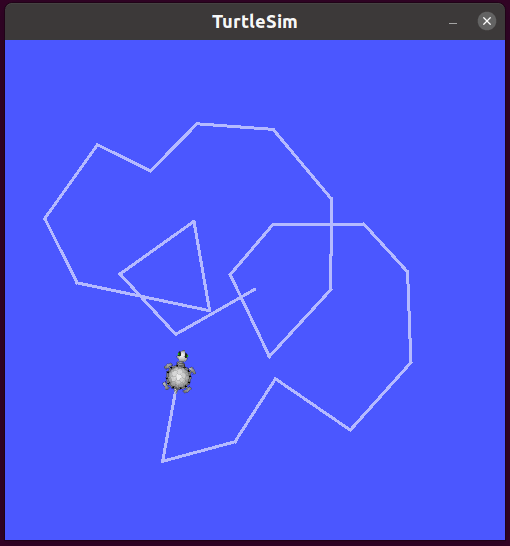
- A simple simulated robot (turtlesim) running in the Ubuntu VM.
- MATLAB on the Windows host, connected to ROS 2 via ROS Toolbox.
In the lab you will:
- Subscribe in MATLAB to the velocity commands sent to the turtle and plot them over time.
- See how teleoperation in ROS 2 is implemented using topics and standard message types.
- Write your own MATLAB publisher that sends velocity commands to the turtle, effectively creating your own teleop node.
The main goal is to get hands-on experience with ROS 2 concepts (nodes, topics, messages) and see how MATLAB can interact with a ROS 2 system in a clear, visual way.
Equipment
- Your personal PC with the Virtual Machine running
- Matlab, 2025a to 2026a, nothing older, nothing newer!
- Good mood!🌈
Report
There is no need to hand in a report for this lab. Answer the questions directly in the Matlab script, and discuss your findings with the lab manager. We will be going around the room, helping and checking your progress.
Instructions
Virtual machine and ROS2 setup
- Turn on your VM
- Log in with the password: robotics
The default middleware that ROS 2 uses for communication is DDS (Data Distribution Service). In DDS, the primary mechanism for having different logical networks share a physical network is known as the Domain ID. ROS 2 nodes on the same domain can freely discover and send messages to each other, while ROS 2 nodes on different domains cannot. All ROS 2 nodes use domain ID 0 by default. To avoid interference between different groups of computers running ROS 2 on the same network, a different domain ID should be set for each group. So each student will have a domain ID given to you by the teacher. It will be a number between 0 and 101, inclusive. This domain ID has to be given to the turtlebot and to your virutal machine.
Open a terminal:
ubuntu@ubuntu:~$ nano ~/.bashrc
This will open a file in the terminal, with the arrows go all the way down until you find: ROS_DOMAIN_ID=24
Change the 24 with your personal domain ID, then save and close the file with Crtl + s then Crtl + x
You then need to source the file you just modified, this is done with this command:
ubuntu@ubuntu:~$ source ~/.bashrc
Matlab programming
On your host PC, open Matlab and copy paste the following code in a new script, then start following the instructions in the comments and the %TODOs. Good luck! 🍀
    %% LAB 1 - INTRO TO ROS2 and Matlab
    % This lab is an introduction to ROS 2 and to the basics of publishing and subscribing to topics from MATLAB.

    % You will use:
    % - A simple simulated robot (turtlesim) running in the Ubuntu VM.
    % - MATLAB on the Windows host, connected to ROS 2 via ROS Toolbox.

    % In the lab you will:
    % - Subscribe in MATLAB to the velocity commands sent to the turtle and plot them over time.
    % - See how teleoperation in ROS 2 is implemented using topics and standard message types.
    % - Write your own MATLAB publisher that sends velocity commands to the turtle, effectively creating your own teleop node.

    % The main goal is to get hands-on experience with ROS 2 concepts (nodes, topics, messages) and see how MATLAB can
    % interact with a ROS 2 system in a clear, visual way.

    %% Lab 1 - Setup

    % Turn on your VM
    % Log in witht he password: robotics
    % Open a terminal:
    % - cd ros2_ws/
    % - source install/setup.bash
    % - ros2 run turtlesim turtlesim_node

    % Open a second terminal:
    % - cd ros2_ws/
    % - source install/setup.bash
    % - ros2 run turtlesim turtle_teleop_key

    % Play around a bit with the turtlesim simulation and the keyboard
    % instructions

    %% Lab 1 - Part A: Connect MATLAB ROS 2 to turtlesim in VM
    clc;
    clear;

    % 1. Set ROS 2 domain ID (must match VM)
    % TODO

    % 2. Create MATLAB ROS 2 node
    % TODO

    % 3. Verify connection by listing available topics and nodes
    disp("ROS2 topics: ");
    ros2("topic", "list");
    disp("ROS2 nodes: ");
    ros2("node", "list");


    %% Lab 1 - Part B: Subscriber to /turtle1/cmd_vel
    clear teleopSub cmdLog
    global cmdLog
    cmdLog = struct("time", [], "linear_x", [], "linear_y", [], "linear_z", [],"angular_x", [], "angular_y", [], "angular_z", []);

    % Callback function to log data
    function teleopCallback(msg)
        global cmdLog
        t = tic;

        cmdLog.time(end+1)      = now;
        cmdLog.linear_x(end+1)  = msg.linear.x;
        cmdLog.linear_y(end+1) = msg.linear.y;
        cmdLog.linear_z(end+1) = msg.linear.z;
        cmdLog.angular_x(end+1)  = msg.angular.x;
        cmdLog.angular_y(end+1) = msg.angular.y;
        cmdLog.angular_z(end+1) = msg.angular.z;
    end

    % Create subscriber
    teleopSub = % TODO

    % Wait for a few seconds to collect data
    pause(30);

    % Unsubscribe from the topic after data collection
    clear teleopSub;
    disp("Unsubscribed from /turtle1/cmd_vel");

    %% Lab 1 - Part B: Plot teleop command history
    global cmdLog
    if isempty(cmdLog.time)
        error("No data logged. Did you move the turtle using teleop?");
    end

    % Convert MATLAB time (days) to seconds relative to first sample
    t0   = cmdLog.time(1);
    tSec = (cmdLog.time - t0) * 24*3600;

    figure;

    % --- Linear velocities ---
    subplot(2,1,1);
    plot(tSec, cmdLog.linear_x, 'r', 'DisplayName','linear.x'); hold on;
    plot(tSec, cmdLog.linear_y, 'g', 'DisplayName','linear.y');
    plot(tSec, cmdLog.linear_z, 'b', 'DisplayName','linear.z');
    xlabel('Time [s]');
    ylabel('Linear velocity [m/s]');
    title('/turtle1/cmd_vel – linear components');
    legend;
    grid on;

    % --- Angular velocities ---
    subplot(2,1,2);
    plot(tSec, cmdLog.angular_x, 'r', 'DisplayName','angular.x'); hold on;
    plot(tSec, cmdLog.angular_y, 'g', 'DisplayName','angular.y');
    plot(tSec, cmdLog.angular_z, 'b', 'DisplayName','angular.z');
    xlabel('Time [s]');
    ylabel('Angular velocity [rad/s]');
    title('/turtle1/cmd_vel – angular components');
    legend;
    grid on;


    %% Lab 1 - Part B: Questions

    % What values of linear.x and angular.z correspond to the different
    % keyboard arroy keys? Fill a small table representing all arrow keys and
    % all angular and linear velocities.

    % Does teleop ever send nonzero values both linear and angular at the same
    % time?

    % Are there "bursts" of commands or a continuous stream?

    %% Lab 1 - Part C : Pulisher to /turtle1/cmd_vel

    % Now that you have understood how the turtle teleoperation works, it's
    % time to make your own, in Matlab!

    % Close the terminal with "ros2 run turtlesim turtle_teleop_key"

    % Create the publisher to /turtle1/cmd_vel
    % TODO
    % Initialize the message type
    % TODO

    disp('MATLAB teleop started.');
    disp('Commands: w=forward, s=backward, a=turn left, d=turn right, x=stop, q=quit.');

    % Create the teleop instructions
    while true
        cmd = input('Enter command (w/s/a/d/x/q): ', 's');  % read string

        % Map command to velocities
        switch cmd
            case 'w'  % forward
                % TODO
            case 's'  % backward
                % TODO
            case 'a'  % turn left
                % TODO
            case 'd'  % turn right
                % TODO
            case 'x'  % stop
                % TODO
            case 'q'  % quit teleop
                % TODO
                send(cmdPub, twistMsg);
                disp('Exiting Matlab teleop.');
                break;
            otherwise
                disp('Unknown command.');
                continue;
        end

        % Send command
        send(cmdPub, twistMsg);
    end

    %% Lab 1 - Part C : Questions

    % Compare your MATLAB teleop command values with those you saw from
    % turtle_teleop_key. Are they similar or different?

    % Can you make the MATLAB teleop produce smoother motion (e.g., send
    % commands repeatedly for a short time rather than a single pulse)?

    % Hint:
    % Instead of single send(cmdPub, twistMsg) in the switch:
    % duration = 0.5;  % seconds
    % t0 = tic;
    % while toc(t0) < duration
    %     send(cmdPub, twistMsg);
    %     pause(0.05);
    % end